
Building a lead list by hand has always been two jobs. There’s the scraping, and then there’s everything after it: opening websites, checking who’s worth a call, writing the first line of each email. MapGopher has handled the first job for a while. With its built-in MCP server, an AI agent like Claude Code can now drive MapGopher for you and carry straight on into the second.
You type something like this:
Find roofers within 20 miles of Denver, keep the ones with a verified email, and save them to Excel.
The agent picks the towns, runs the dig, waits for it to finish, filters the results and writes the spreadsheet. Then you can keep asking. This post covers the setup, what actually happens when you send a request, the prompts that work well, and a few things that trip people up.
What MCP is, in one paragraph
MCP (Model Context Protocol) is the standard way AI agents talk to outside tools. An app that runs an MCP server describes what it can do, such as “start a scan” or “export results”, and any agent that speaks MCP can call those actions. Claude Code, Codex and Cursor all support it, which is why one MapGopher setting covers all three.
The important part for lead generation: the MCP server runs inside the MapGopher app on your own computer. Your agent talks to 127.0.0.1, the digs run from your machine, and the leads land in the same saved list you see in the app.
Setup takes about a minute
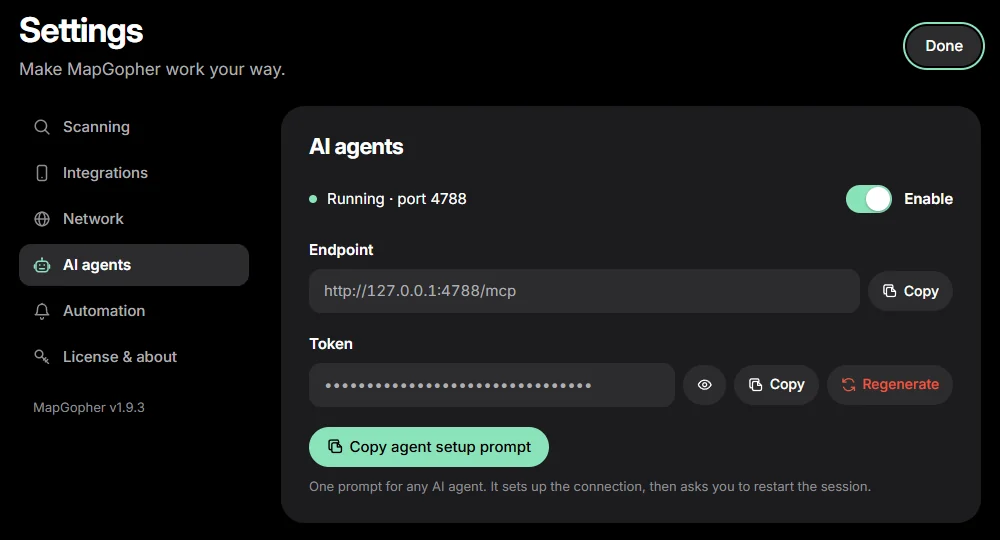
- Open MapGopher, go to Settings → AI agents, and switch on Enable. The status line changes to Running with a port number.
- Press Copy agent setup prompt. It copies one block of text holding the endpoint, your access token and the wiring instructions.
- Paste it into Claude Code. The agent adds MapGopher as an MCP server by itself.
- Restart the Claude Code session when it asks. Agents load their tools when a session starts, so the MapGopher tools appear after the restart.
If you’d rather add it yourself, the Claude Code command looks like this, with the endpoint and token copied from the same panel:
claude mcp add --transport http mapgopher <endpoint> --header "Authorization: Bearer <token>"For Codex, store the token in an environment variable and point Codex at it:
codex mcp add mapgopher --url <endpoint> --bearer-token-env-var MAPGOPHER_TOKENCursor and most other clients accept the usual mcpServers JSON block with a url and an Authorization header. The AI agents guide has the full config, and one detail matters for all of them: always copy the endpoint from the panel rather than typing a port from memory. The default is 4788, but MapGopher moves to another port if that one is taken.
What happens when you ask for leads
It helps to know what the agent is doing behind the scenes, because it explains how long things take and why some requests work better than others. A typical request turns into five or six tool calls:
expand_radiusturns “within 20 miles of Denver” into a list of towns, largest first. It works offline from a city database bundled with the app.start_scanstarts the dig for every keyword and town combination and returns straight away, while the dig runs in the background.get_scan_statuswaits for the dig to finish. One call can wait up to ten minutes, so the agent isn’t hammering the app with checks.summarize_resultsgives the agent the totals first: how many leads, how many with emails and websites, the top categories.get_resultspages through the rows it needs, already filtered and sorted, without dumping hundreds of leads into the conversation.export_resultswrites CSV, Excel, JSON or Markdown into MapGopher’s export folder.
The tool reference lists all thirteen tools with every parameter, including get_new_listings for spotting businesses that appeared since your last dig and save_settings for proxies and webhooks.
Prompts that work well
The best requests name a niche, an area and what you want at the end. Here are the kinds of jobs people give their agent, and which part each side does.
A straight list. “Find dentists in Austin and Round Rock, keep the ones with a verified email, and export them to CSV.” MapGopher does all of this on its own; the agent is just saving you the clicks.
Researching every lead. “For each plumber with a website, visit the site and add the owner’s name, the services they list and whether they mention financing.” MapGopher supplies the list and the URLs. Reading the sites is your agent’s own web tool, so the quality depends on the agent you use.
Website audits for web design and SEO pitches. “Which of these roofers have no website, no HTTPS or a site that breaks on a phone? Rank them as prospects.” The no-website part comes straight from the data. The HTTPS and mobile checks are the agent fetching each site.
Competitor research. “Compare ratings and review counts for every med spa in Scottsdale and tell me who’s falling behind.” Ratings, review counts and categories all come from MapGopher; the agent does the sorting and the write-up.
First drafts of outreach. “Write a short first email for each verified lead that mentions something specific from their website, and put the drafts in a CSV.” You get a sheet to load into whatever you send from. MapGopher doesn’t send email, and you should read the drafts before anything goes out.
Watching a niche. “Rerun last week’s electricians scan and show me only the listings that are new.” The agent reuses the keywords and towns from the scan history, digs again, then asks MapGopher for rows first seen since the previous run.
MapGopher also ships three ready-made prompts, find-leads, monitor-niche and export-clean-list. In Claude Code they show up in the slash-command menu once the server is connected, and they walk the agent through those workflows step by step.
Things that trip people up
Ask for emails. Over MCP, email finding is off unless the request asks for it, because visiting every website makes a dig several times slower. “Find plumbers in Spokane” gets you phones and websites; “find plumbers in Spokane with emails” gets you the lot.
Big digs take a while. A dozen towns with email finding on can run well past ten minutes. The agent’s status check gives up after ten minutes and calls again, which is normal. Some clients also cap how long a single tool call may run (many default to five minutes), so if yours stops waiting, just tell it to keep checking.
Exports go to MapGopher’s folder. For safety, the agent can’t write files anywhere it likes; exports land in MapGopher’s own export directory and the agent tells you the path. Ask it to move the file afterwards if you want it somewhere else.
The saved list is shared. Agent digs and your own digs land in the same saved list. There’s a tool that clears it, and its instructions tell the agent to use it only after you’ve clearly confirmed, but it’s worth knowing it exists before you ask an agent to “start fresh”.
Same license, same limits. Scanning and exporting over MCP go through the same license check as the app. Everything your trial or plan allows by hand, your agent can do too, and there’s no separate AI add-on.
Why run it locally
Cloud lead tools that added AI features usually charge per lead or per credit, and every agent run burns through them. Here the agent is driving an app on your machine, so a hundred test digs while you work out the right prompt cost nothing extra. Your leads stay in a file on your computer rather than on someone else’s server, and the agent only sees what it asks for.
Try it with your agent
MapGopher’s monthly plan starts with a 7-day trial of every feature, the MCP server included. Install the app, switch on AI agents, paste the setup prompt into Claude Code, and ask for a niche you actually sell to. Your first list should take less time than reading this post did. After the trial it’s $14.99 a month, or $149 once for the lifetime license, with unlimited leads either way.