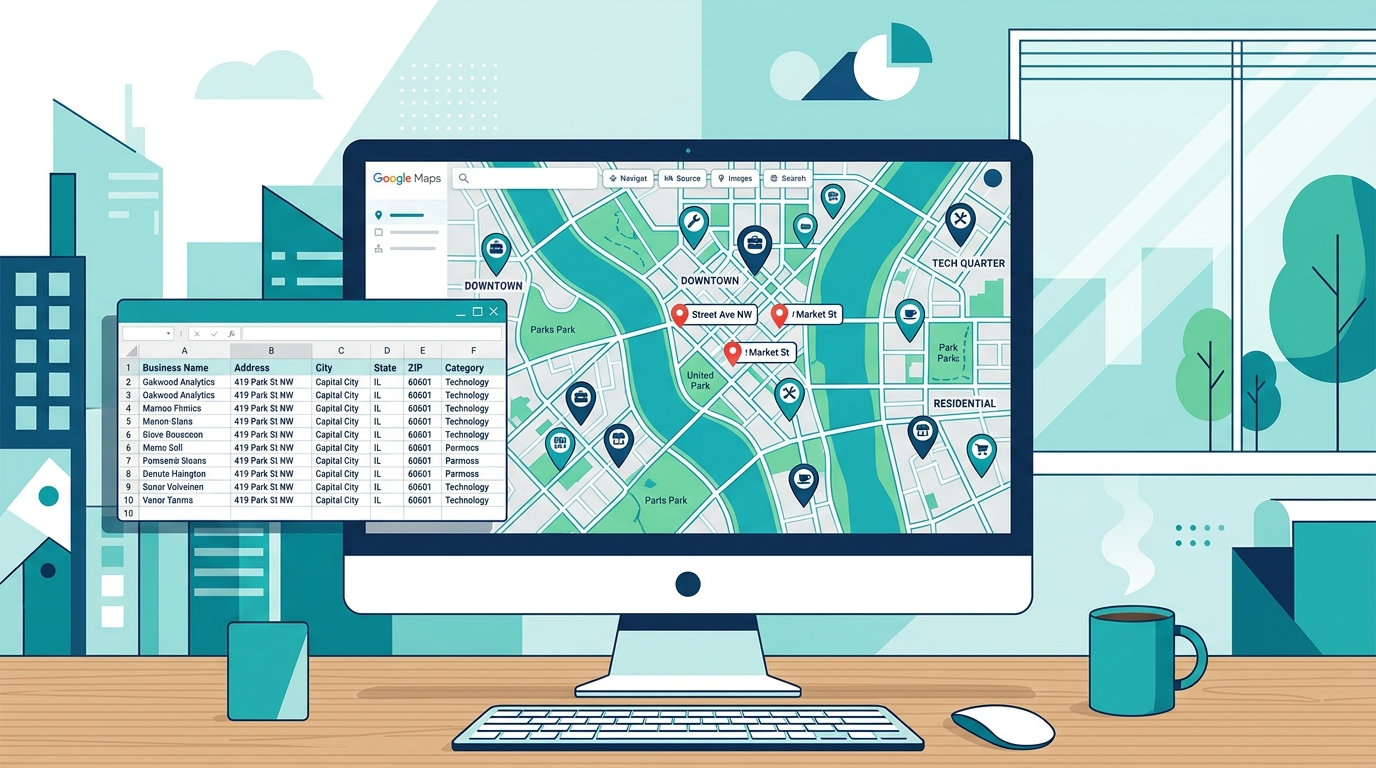
If you sell to local businesses, Google Maps is the single best source of leads you’re not fully using yet. Every plumber, dentist, realtor, and restaurant is listed there with their name, address, phone number, and website.
The problem? Getting that data out of Google Maps at scale.
This guide covers exactly how to extract leads from Google Maps, what data you can pull, and how to turn it into outreach-ready lists.
What data can you extract from Google Maps?
Each Google Maps business listing (a Google Business Profile) contains:
| Field | Example | Source |
|---|---|---|
| Business Name | Sunrise Plumbing LLC | Google Maps listing |
| Address | 123 Main St, Austin, TX 78701 | Google Maps listing |
| Phone Number | (555) 123-4567 | Google Maps listing |
| Website URL | sunriseplumbing.com | Google Maps listing |
| Rating & Reviews | 4.7 stars (128 reviews) | Google Maps listing |
| Business Category | Plumber | Google Maps listing |
| Claimed Status | Unclaimed | Google Maps listing |
| Email Address | [email protected] | Business website |
Some tools, including MapGopher, go a step further and automatically visit each business’s website to extract email addresses that aren’t shown on the Google Maps listing itself.
This combination of map data + website data is what makes Google Maps scraping so valuable for B2B outreach.
3 methods to extract Google Maps leads
| Method | Cost | Speed (50 leads) | Emails Included? | Technical Skill |
|---|---|---|---|---|
| Manual copy-paste | Free | 2-3 hours | Only if you visit each site | None |
| Google Maps API | Pay per request | Fast (with code) | No | High (coding required) |
| Desktop scraping tools (MapGopher) | $79 one-time | 15-30 minutes | Yes (auto-extracted) | None |
Method 1: Manual copy-paste (free but slow)
You can search Google Maps for a keyword + city (like “landscapers in Denver”), click each business, and copy the details into a spreadsheet.
Pros: Free, no tools needed. Cons: Painfully slow. A list of 50 businesses takes 2-3 hours. Error-prone.
This works if you need 10-20 leads. Beyond that, the time cost makes it impractical.
Method 2: Google Maps API (technical)
Google offers a Places API that lets developers query business data programmatically.
Pros: Official, reliable, well-documented. Cons: Requires coding knowledge. Costs money per request. Rate limited. Doesn’t include email addresses or claimed status.
For a developer building an app, the API is great. For a salesperson or agency who just wants a CSV of leads, it’s overkill.
Method 3: Desktop scraping tools (fast & practical)
Desktop applications like MapGopher automate the entire process. You type in a keyword and location, and the tool navigates Google Maps like a real user, extracts the data, and exports it to CSV or Excel.
Pros: No coding. Fast (50-100 leads per session). Includes emails. One-time cost. Cons: Requires a Windows PC or Mac.
This is the approach most freelancers and agencies use because it balances speed, cost, and data quality.
Step-by-step: Extracting leads with MapGopher
Here’s the exact workflow to go from zero to a clean lead list:
Step 1: Define your target
Pick a keyword (business type) and location (city or region). Be specific.
Good examples:
- “HVAC contractors in Phoenix”
- “Med spas in Miami”
- “Wedding photographers in Portland”
Avoid broad searches like “contractors in USA” — focused lists convert better.
Step 2: Run the extraction
Open MapGopher, enter your keyword and location, and start the session. The tool browses Google Maps at a human pace, visiting each business listing and collecting the data.
For businesses with websites, MapGopher automatically visits their site in the background to find email addresses on contact pages.
Step 3: Export to CSV or Excel
When the session finishes, export your leads. Each row contains:
| Field | Example |
|---|---|
| Business Name | Sunrise Plumbing LLC |
| Phone | (555) 123-4567 |
| [email protected] | |
| Address | 123 Main St, Austin, TX |
| Rating | 4.7 (128 reviews) |
| Website | sunriseplumbing.com |
| Claimed Status | Unclaimed |
Step 4: Filter and prioritize
Sort your leads by what matters most:
- Unclaimed profiles are low-hanging fruit for SEO agencies
- Businesses without websites may need web design services
- Low review counts suggest businesses that need marketing help
What makes Google Maps leads different?
Google Maps leads have two advantages over other lead sources:
-
They’re verified businesses. Google has already confirmed these are real, operating businesses with physical locations. You’re not scraping random directories full of stale data.
-
You can target by intent. A dentist who just set up a Google Business Profile is likely a new practice that needs services. An unclaimed profile means the owner isn’t tech-savvy — easy outreach.
How to use extracted leads effectively
Once you have your CSV, the real work begins. Here are the highest-converting approaches:
Cold email: Use the auto-extracted email addresses. Keep it short, reference their specific business, and lead with value.
Cold calling: Use the phone numbers. “I noticed your Google profile isn’t claimed” is one of the best openers for local business outreach.
Direct mail: Use the addresses. A physical letter stands out when everyone else is sending emails.
Retargeting: Upload the business names and URLs to build custom audiences on Meta or Google Ads.
Common questions
Is scraping Google Maps legal? Google’s Terms of Service prohibit automated scraping. However, tools like MapGopher operate by mimicking real user behavior through an actual browser, which is different from server-side scraping. Many businesses use this approach for lead generation. Use responsibly and in moderation.
How many leads can I extract? With MapGopher, there are no per-lead limits. You pay once and can run unlimited sessions. We recommend focused sessions of 50-200 leads for best results.
Will my IP get blocked? MapGopher browses at a human pace specifically to avoid detection. For normal lead generation volumes, this isn’t a concern.
Bottom line
Google Maps is the largest free database of local businesses in the world. Extracting leads from it is straightforward with the right tool. The key is being specific with your targeting and acting on the data quickly.
If you want to skip the manual work, MapGopher handles the entire process — from searching Google Maps to finding emails to exporting clean CSV files. One-time purchase, unlimited leads.