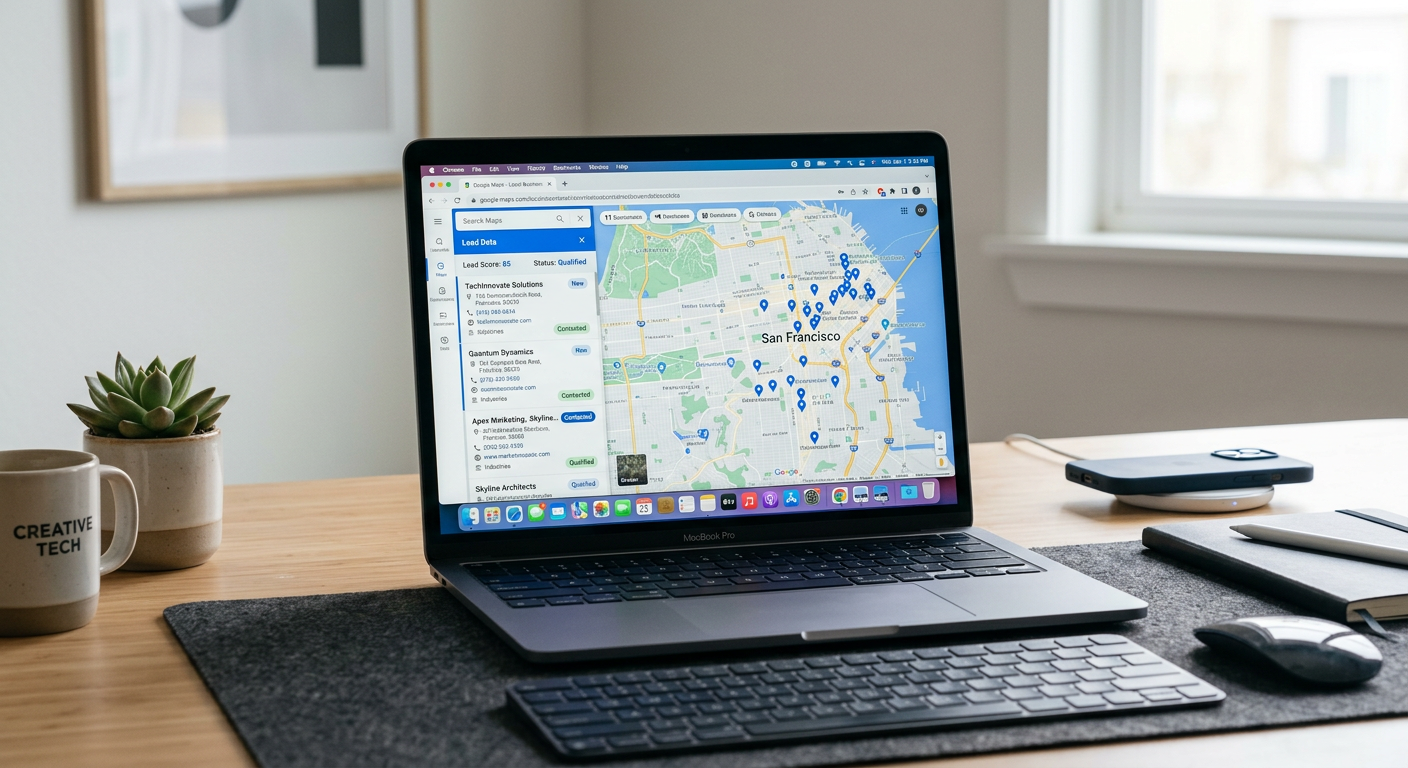
Most Google Maps scraping tools are built for Windows. They run on .NET frameworks, require registry modifications, or simply do not have Mac versions at all. Mac users are often left running Windows virtual machines or searching for browser extensions that lack the power of desktop applications.
MapGopher is different. It is a native desktop application built for both Windows and macOS, including full support for Apple Silicon. This guide walks through the complete setup process for Mac users, from download to first extraction.
System requirements
Before you start, confirm your Mac meets these requirements:
- macOS 10.15 (Catalina) or later
- Intel or Apple Silicon (M1/M2/M3) processor
- 4 GB RAM minimum (8 GB recommended)
- 500 MB free disk space
- Internet connection (broadband recommended)
MapGopher runs natively on both Intel and Apple Silicon Macs. There is no emulation layer, no Rosetta translation required, and no performance penalty on newer hardware.
Download and installation
Step 1: Download the Mac version
Visit the MapGopher website and download the macOS version. The file will be a DMG (disk image) containing the application.
File details:
- Name:
MapGopher-Mac.dmg - Size: Approximately 150 MB
- Format: Apple Disk Image
Step 2: Open the DMG
Double-click the downloaded DMG file. macOS will mount it as a virtual disk and open a Finder window showing the contents.
You will see:
- The MapGopher application icon
- A shortcut to your Applications folder
- Optional README or license files
Step 3: Install the application
Drag the MapGopher icon to the Applications folder shortcut. This copies the application to your Mac’s Applications directory.
Alternative method: You can also drag MapGopher directly to your Applications folder in Finder if you prefer.
Step 4: Eject the DMG
Once the copy completes, eject the DMG by clicking the eject icon next to it in Finder’s sidebar, or by dragging it to the Trash (which becomes an eject symbol for mounted disks).
You can now delete the DMG file to save space, or keep it as a backup installer.
First launch
MapGopher is signed and notarized with Apple, so it opens on macOS without any Gatekeeper warnings or security dialogs. Simply double-click the app in your Applications folder to launch it.
Granting permissions
MapGopher may request certain permissions during first launch:
Network access: Required to browse Google Maps and extract data. Grant this when prompted.
File system access: Required to save CSV exports to your computer. You will be asked to select a default export location.
Accessibility access: Not required for basic operation. Only grant if you are using advanced automation features.
Activating your license
MapGopher uses a simple license key system. When you purchase, you receive a unique license key via email.
To activate:
- Open MapGopher
- Click “Activate License” in the welcome screen or menu
- Enter your license key exactly as provided
- Click “Activate”
The license is tied to your hardware. You can activate up to three devices with a single license, perfect for users with multiple Macs or those who switch between desktop and laptop.
Transferring licenses:
If you get a new Mac, contact support to deactivate the old device and activate the new one. There is no charge for license transfers.
Your first extraction: A walkthrough
Once activated, you are ready to extract your first lead list. Here is the complete process.
Step 1: Define your search
In the main MapGopher window, you will see two input fields:
- Keyword: The type of business you want to find
- Location: The city or area to search
Example searches:
| Keyword | Location | Expected Results |
|---|---|---|
| Emergency plumber | Phoenix, AZ | 50-100 leads |
| Dental implants | Miami, FL | 30-80 leads |
| Commercial roofing | Seattle, WA | 40-120 leads |
| Med spa | Austin, TX | 30-100 leads |
Be specific with your keywords. “Plumber” is better than “contractor.” “Emergency plumber” is better than “plumber.”
Step 2: Configure extraction options
Click the settings icon to configure extraction behavior:
Email extraction: Enabled by default. MapGopher visits each business website to find email addresses. This adds time but significantly improves lead quality.
Speed setting: Choose between Normal, Fast, and Slow. Normal is recommended for most users. Fast increases speed but may trigger rate limits. Slow is safest for large extractions.
Export format: Choose CSV or Excel. CSV is compatible with everything. Excel provides native spreadsheet formatting.
Step 3: Start the extraction
Click the “Start Extraction” button. MapGopher begins browsing Google Maps and collecting data.
What happens during extraction:
- MapGopher searches Google Maps for your keyword and location
- It identifies all matching business listings
- For each listing, it extracts: name, address, phone, website, rating, reviews, claimed status
- If email extraction is enabled, it visits each website and scans for email addresses
- All data is compiled into a structured table
Progress indicators:
- Businesses found: Total listings identified
- Emails extracted: Contact addresses discovered
- Current page: Where in the search results MapGopher is working
- Estimated time remaining: Based on current speed and remaining listings
Step 4: Monitor and wait
Extraction time depends on your search size and settings:
| Search Size | Normal Speed | With Email Extraction |
|---|---|---|
| 50 leads | 3-5 minutes | 8-12 minutes |
| 100 leads | 6-10 minutes | 15-20 minutes |
| 200 leads | 12-18 minutes | 25-35 minutes |
MapGopher paces itself to avoid detection. Let it run — the wait produces better data than rushed extraction.
Step 5: Review and export
When extraction completes, review your results in the data table:
- Check that business names look correct
- Verify email coverage (50-70% is typical)
- Note any duplicates or irrelevant results
Click “Export” to save your leads. Choose your format and location. The file is ready for import into your CRM, email tool, or spreadsheet.
Optimizing performance on Mac
Apple Silicon optimization
MapGopher is optimized for Apple Silicon (M1/M2/M3) processors. On these machines, you will see:
- Faster website crawling during email extraction
- Lower power consumption during long extractions
- Smoother UI responsiveness
If you have an Intel Mac, MapGopher runs perfectly but extractions may take slightly longer.
Memory management
MapGopher is efficient with RAM, but large extractions (500+ leads) use more memory. If you experience slowdowns:
- Close unnecessary applications
- Run smaller extractions (100-200 leads at a time)
- Export and clear data between large sessions
Network considerations
MapGopher requires a stable internet connection. For best results:
- Use wired Ethernet if available (more stable than Wi-Fi)
- Avoid starting extractions on unstable public Wi-Fi
- Do not run VPNs that significantly reduce connection speed
Troubleshooting common issues
Issue: “MapGopher is damaged and cannot be opened”
If you see this error, your download may be corrupted. MapGopher is signed and notarized, so this message should not appear under normal circumstances.
Solution:
- Delete the current copy of MapGopher from your Applications folder
- Re-download MapGopher from the website
- Re-install by dragging the new copy to your Applications folder
- Try opening again
If the issue persists, contact support for a fresh download link.
Issue: Extraction stops or freezes
If MapGopher stops responding during extraction:
- Wait 2-3 minutes — it may be processing a slow website
- Check your internet connection
- Try reducing the extraction speed in settings
- Restart MapGopher and resume (progress is auto-saved)
Issue: No emails found
If email extraction returns few or no results:
- Verify email extraction is enabled in settings
- Check that businesses in your niche typically have websites
- Try a different niche — some industries have low web presence
- Ensure you are not on a network blocking website crawling
Issue: License activation fails
If your license key does not work:
- Check for typos — copy and paste the key exactly
- Verify you have not exceeded your three-device limit
- Contact support with your license key and error message
Integration with Mac workflows
MapGopher fits naturally into Mac-based workflows:
Export to Numbers: CSV exports open directly in Apple’s Numbers spreadsheet application. No conversion needed.
Automator integration: Use macOS Automator to create workflows that process MapGopher exports automatically.
Spotlight search: Exported CSV files are indexed by Spotlight, making them searchable from anywhere on your Mac.
iCloud Drive: Save exports to iCloud Drive for automatic sync across your Mac, iPhone, and iPad.
Keyboard shortcuts
MapGopher supports standard Mac keyboard shortcuts:
| Shortcut | Action |
|---|---|
| Command + N | New extraction |
| Command + E | Export results |
| Command + S | Save session |
| Command + , | Preferences |
| Command + Q | Quit |
Updating MapGopher
MapGopher checks for updates automatically. When an update is available:
- A notification appears in the application
- Click “Download Update” to fetch the new version
- The update installs automatically
Updates are free for all licensed users. There are no subscription fees or upgrade charges.
Getting help
If you encounter issues not covered in this guide:
- Check the built-in help (Help menu > MapGopher Help)
- Visit the support website for FAQs and tutorials
- Contact support via email with your license key and issue description
Support is included with your one-time purchase. There are no support tiers or paid support plans.
Bottom line
Mac users no longer need to settle for browser extensions or Windows workarounds. MapGopher brings full-featured Google Maps lead extraction to macOS with native Apple Silicon support, simple installation, and a one-time purchase model.
The setup takes five minutes. Your first extraction takes thirty. And you are extracting unlimited local business leads without monthly fees or subscription traps.
Download MapGopher for Mac and start building your lead lists today. One license covers up to three devices, perfect for your MacBook, iMac, or Mac mini.